
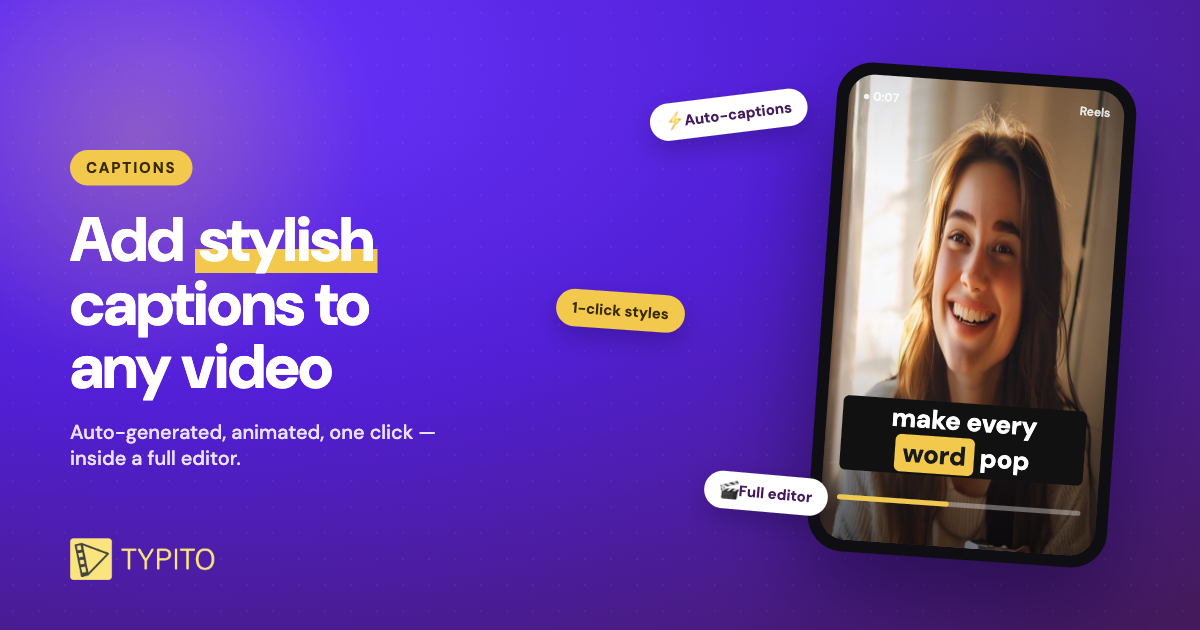
Captions aren’t optional anymore — most social video is watched on mute, and on-screen text is what keeps people watching. The good news: adding captions takes minutes with the right tool. This guide covers what a captioning tool actually does, how to add captions to any video, and the best captioning tools in 2026 — with honest pricing and free options.
What is a captioning tool?
A captioning tool automatically turns your video’s speech into on-screen text — captions or subtitles — then lets you style and export it. Modern tools use AI to generate accurate captions in seconds, dress them up with animated templates, and export them either burned into the video or as a separate SRT file.
⚡ TL;DR — which captioning tool should you use?
- Stylish captions + full video design: Typito — auto-captions and animated templates inside a complete editor.
- Fast, simple subtitles: Zubtitle. All-round AI editing: VEED.
- Free mobile editing: CapCut.
- Every tool here has a free plan — the right pick depends on whether you want just captions or captions plus a full editor.
How to add captions to a video (3 steps)
Here’s the fastest way to caption a video, using Typito’s caption tool as the example:
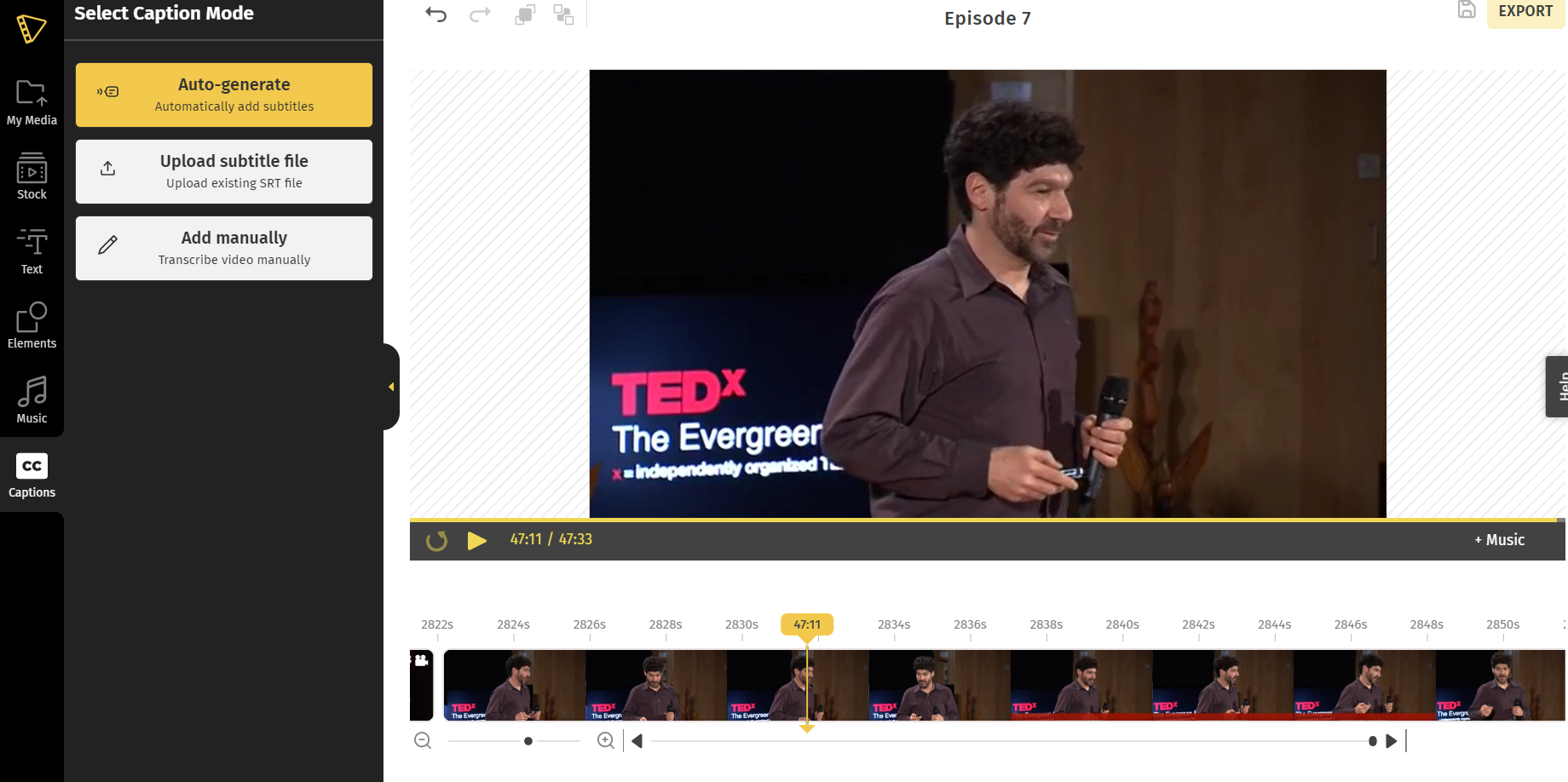
- Upload your video and auto-generate captions. Drop in your clip and let AI transcribe the audio into time-synced captions.
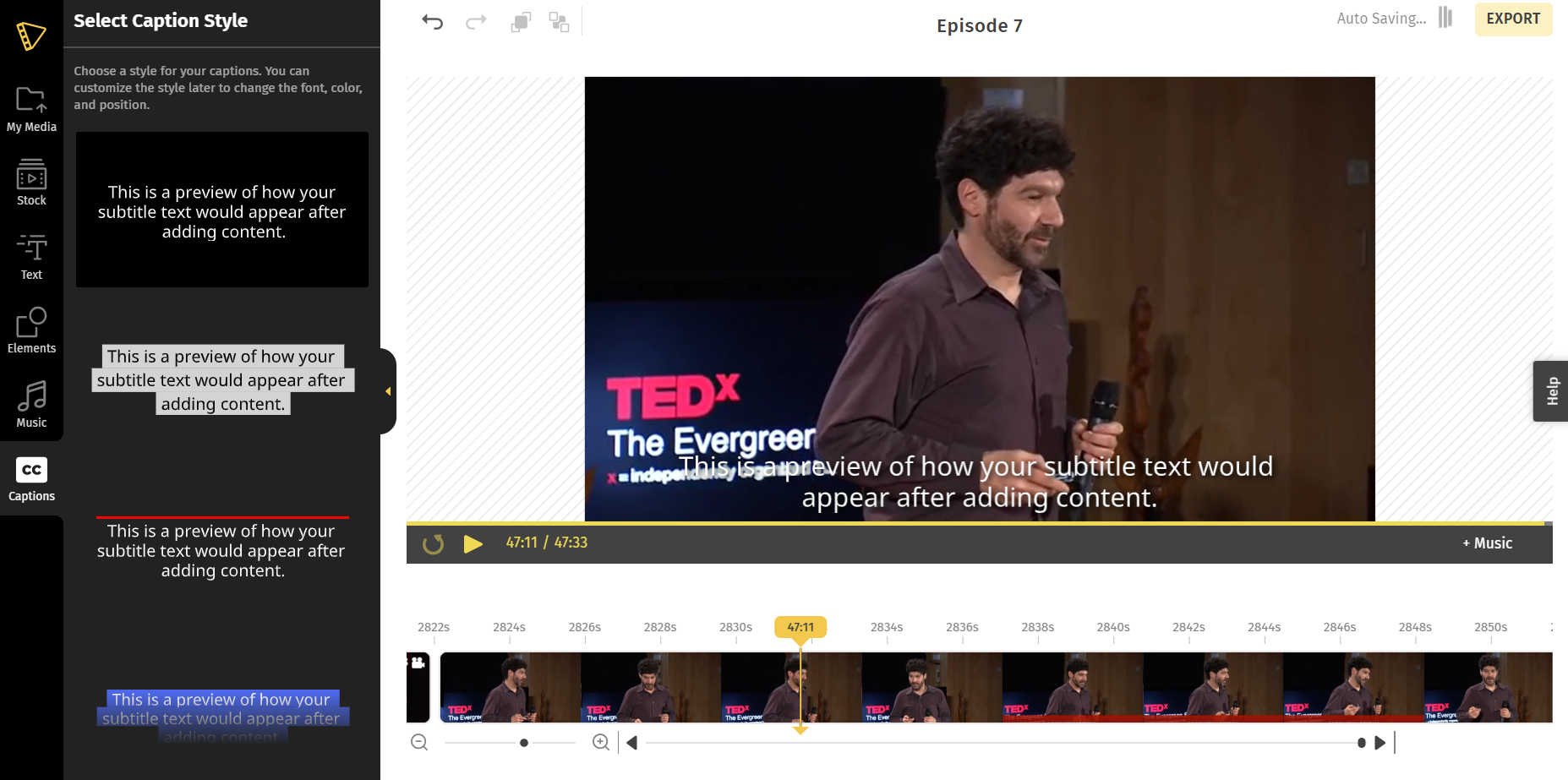
- Pick a caption style. Choose an animated caption template and adjust the font, colour and position to match your brand.
- Tweak and export. Fix any misheard words, then export the video with captions burned in — or download an SRT file.
| Feature | Typito | Zubtitle | VEED | CapCut |
|---|---|---|---|---|
| AI auto-captions | ✓ | ✓ | ✓ | ✓ |
| Animated caption templates | ✓ | ✓ | ✓ | ✓ |
| Full video editor | ✓ | ✗ | ✓ | ✓ |
| SRT + burned-in export | ✓ | ✓ | ✓ | ✓ |
| Free plan | ✓ | ✓ | ✓ | ✓ |
| Paid from (billed monthly) | $18 | $19 | $24 | $10 |
| Best for | Captions + full design | Fast subtitles | All-round AI editing | Free mobile editing |
At-a-glance comparison. Lowest paid tier, monthly billing (annual is cheaper). Prices verified Jul 2026 — check each tool for the latest.
The best captioning tools in 2026
1. Typito — best for stylish captions + full design
Typito is a browser-based video editor with AI auto-captions built in. It stands out for animated caption templates — the kind of bold, word-by-word styles that stop the scroll — applied in one click, inside a full editor where you can also add text, music and your brand kit. So the same project goes from raw clip to captioned, branded video without switching apps.
Pros
- Auto-captions plus stylish, animated templates
- A full video editor around your captions
- Built for social formats (9:16, 1:1, 16:9)
- Free plan; captions on Solo from $15/mo
Cons
- More than a pure captioning app if you only want subtitles
- Web-based, so you’ll need an internet connection
For captions that look designed — inside a tool that finishes the whole video — Typito is the strongest pick here.
Real example: see how LCFA used Typito’s captions on their public-health videos →
2. Zubtitle — best for fast, simple subtitles
Zubtitle does one thing well: quick, accurate subtitles for social video. Upload a clip, auto-transcribe, tweak the text, add a progress bar or headline, and export. It’s subtitle-first rather than a full editor, with a straightforward Guru plan at $19/month (there’s a free tier too). A solid choice if all you need is captions, fast.
3. VEED — best all-round AI editor
VEED is a capable browser editor with auto-subtitles in 100+ languages plus AI tools, avatars and translation on higher plans. It has a free plan (watermarked); paid starts around $24/month. Great if you want captions as part of a broader AI editing suite — see our VEED alternatives breakdown for the full picture.
4. CapCut — best free mobile editor
CapCut is effectively free and hugely popular for mobile editing, with auto-captions and trending effects. It’s the go-to if you edit on your phone and want zero cost, though caption styling is less brand-focused than a design-first tool.
Where can I add captions for free?
Several tools let you auto-caption a video for free. CapCut is effectively 100% free for most editing. Typito, VEED and Zubtitle all offer free plans too — usually enough to try, with a watermark or limits, and paid tiers for watermark-free exports. If you want free and stylish captions with room to grow, start with Typito’s free caption tool. New to it? See our step-by-step guides to add subtitles to a video and auto-generate subtitles.
Frequently asked questions
Q: What is a captioning tool?
A captioning tool automatically turns your video’s speech into on-screen text (captions or subtitles), then lets you style and export it. Tools like Typito use AI to generate captions in seconds, add animated templates, and export burned-in captions or an SRT file.
Q: Where can I do auto captions for free?
Several tools have free plans — Typito, CapCut, VEED and Zubtitle all let you auto-caption a video for free, usually with a watermark or export limits. CapCut is effectively free; the others offer free tiers with paid upgrades for watermark-free exports.
Q: What is the best free app for captions?
CapCut is the best fully-free option for mobile captioning. For stylish, template-based captions on a free plan, Typito is a strong pick. The right choice depends on whether you want quick captions or captions plus full video design.
Q: Can ChatGPT generate captions?
ChatGPT can write social-media caption text (the post copy), but it can’t auto-generate time-synced video subtitles from your footage. For that you need a captioning tool like Typito that transcribes the audio and syncs the text to the video.