
How to add a countdown or count-up timer to a video
A timer on screen tells viewers exactly how long to hold an exercise, and makes a workout video look properly produced. There are two ways to add one, and which you want depends on how many timers your video needs.
One or two timers? Use the Elements shelf — it takes a couple of clicks. A full routine with a timer on every set? Use the Fitness editor, which applies your timer styling to every sequence automatically.
Method 1: add a timer from the Elements shelf
Best for a single video, or when you only need a timer on one or two clips.
1Create a project and upload your video. You can upload from your computer, or from Google Drive if the file is large.
2Open the Elements shelf in the left panel and find Timers. Click View all to see every timer template.
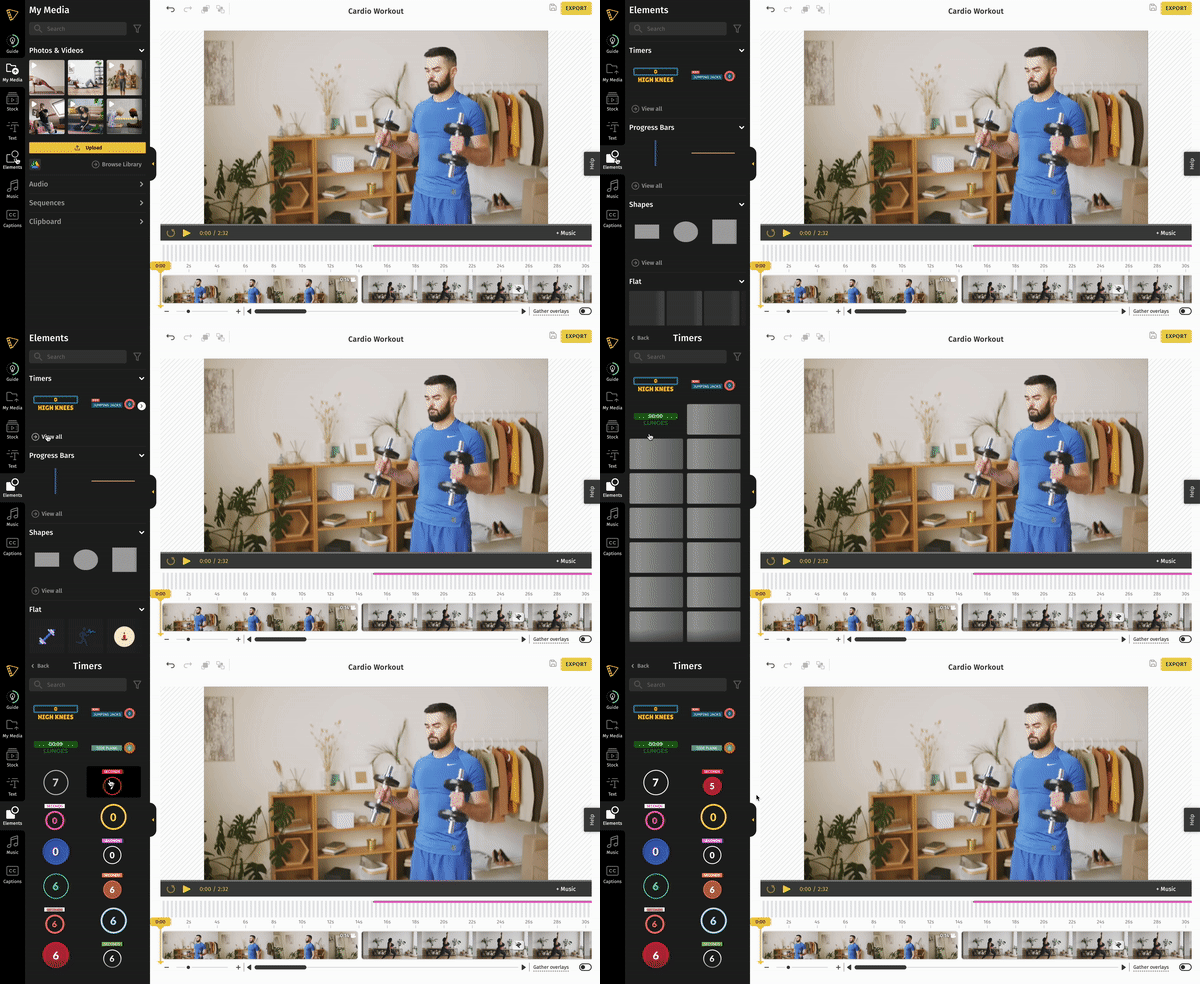
3Click a timer to add it to your project, then set its position, colour and font to match the rest of your video.
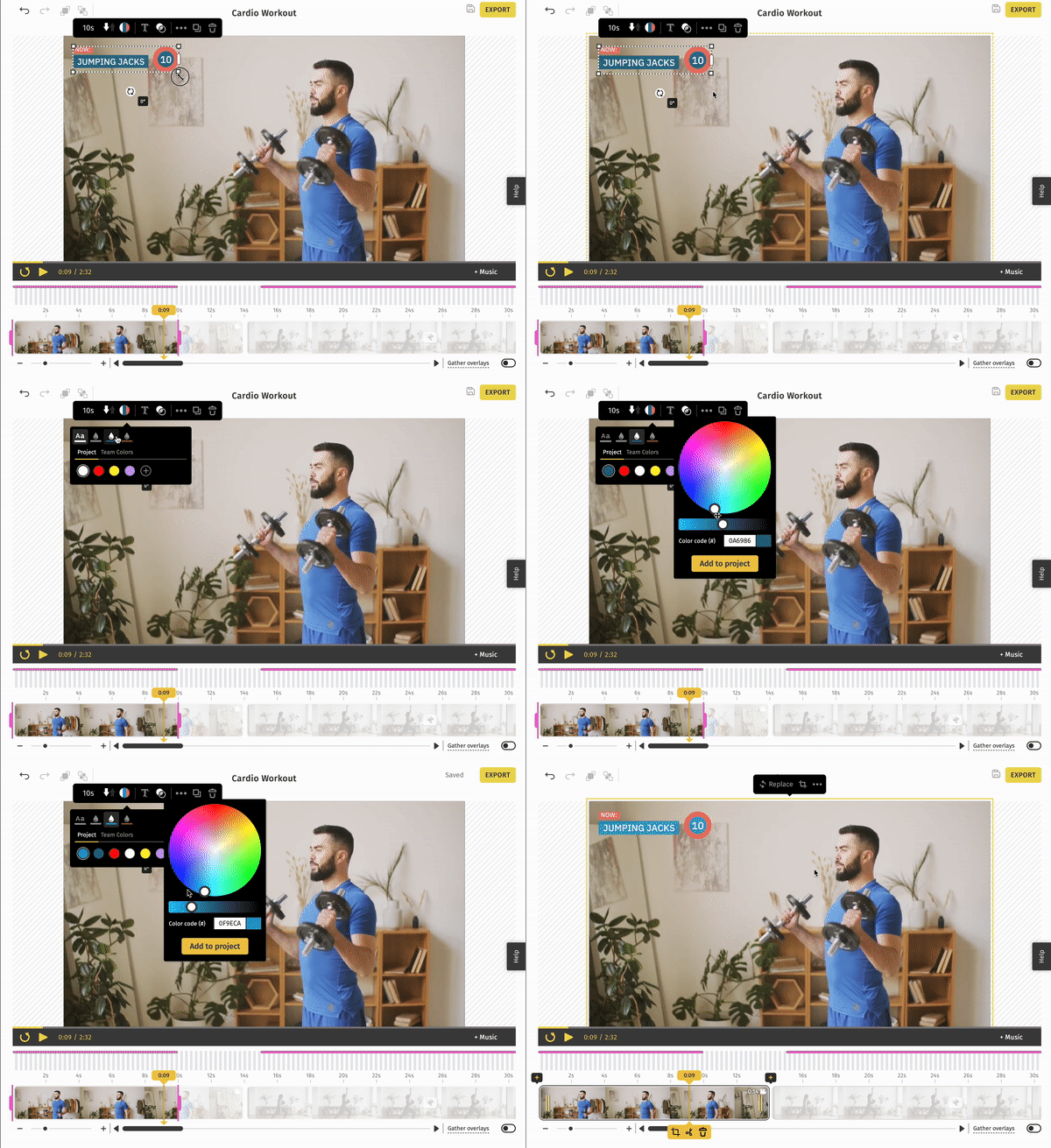
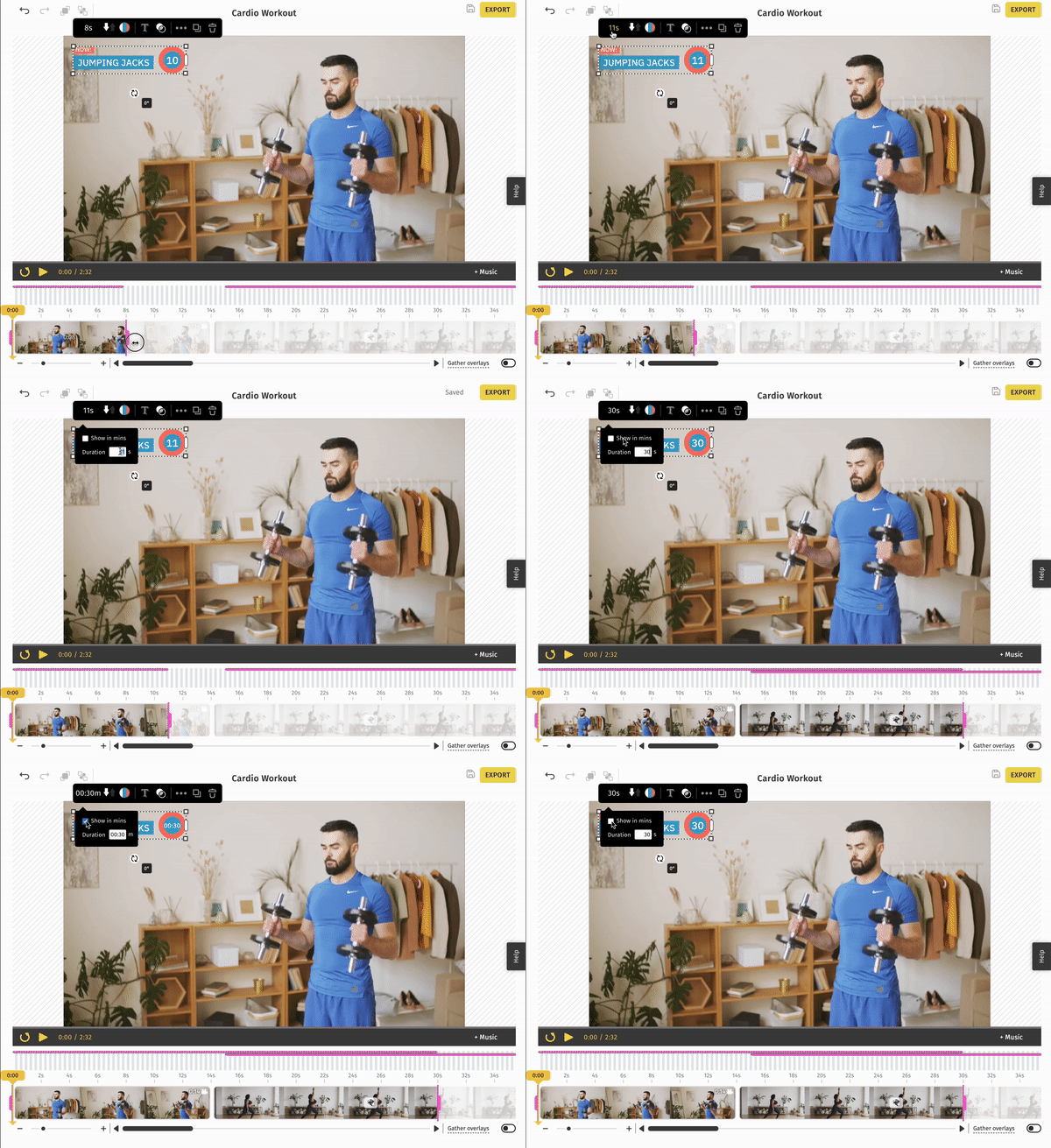
4Drag the handles to match the length of your exercise set, or type the duration into the action bar. A timer can count in minutes or in seconds.
5Preview the project, then export.
Method 2: add timers with the Fitness editor
Best for a full routine. On a 45-minute workout, adding a timer to every set by hand is slow — the Fitness editor styles them once and reuses that styling for each sequence you add.
1Upload the video you want to use.
2Choose your design elements. Set the style for your Title text, Steps and Descriptions, and Paragraph text.
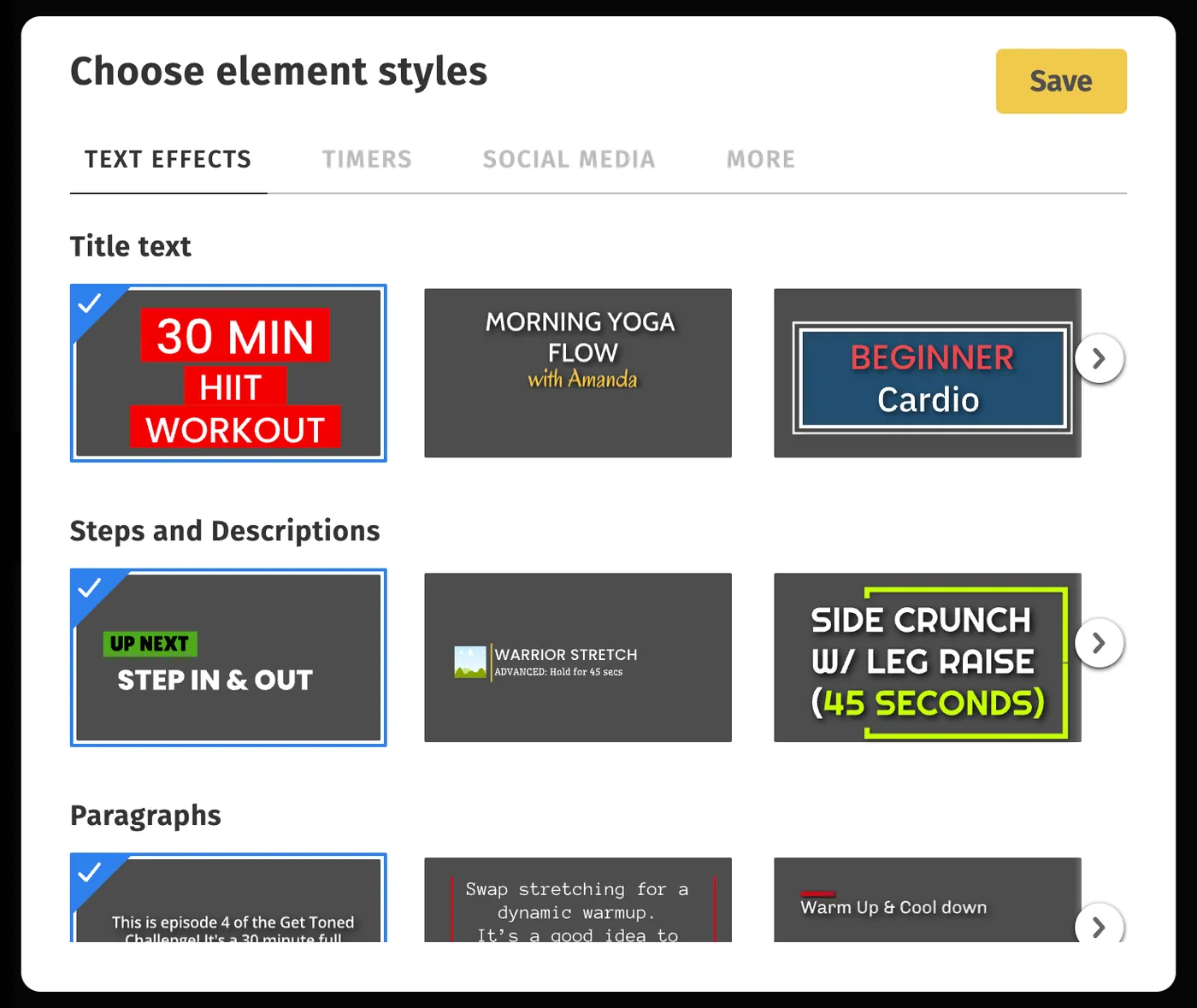
3Open the Timer tab and pick a timer template. There are two kinds.
- Step timer — counts an exercise rep.
- Rest timer — counts a rest period between sets.
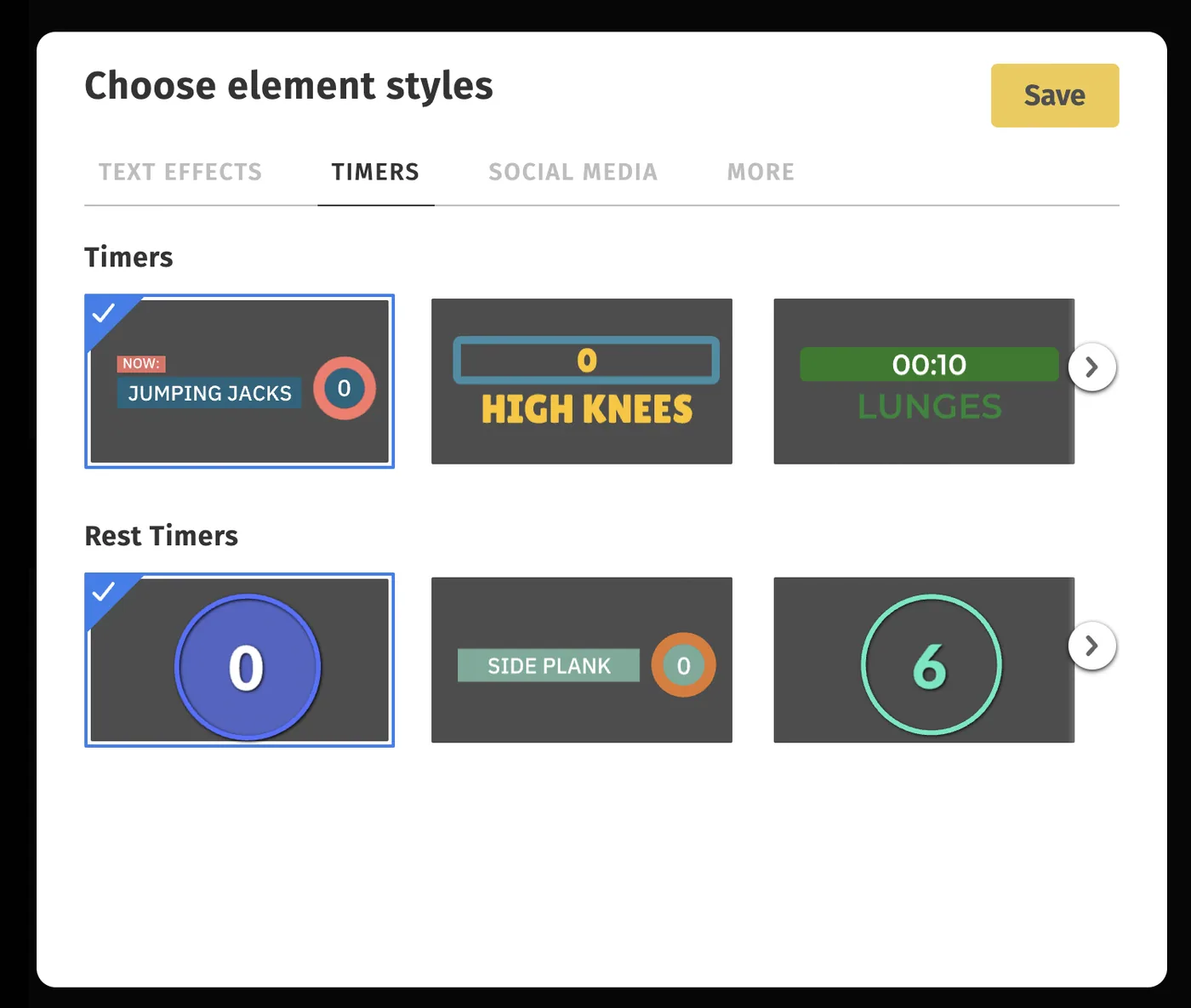
Carry on through the remaining categories — Social Media templates, progress bars and calorie meters — then click Save in the top right.
4Create a step sequence. Sequences mark the parts of a routine: the intro, each exercise, the rest periods and the outro.
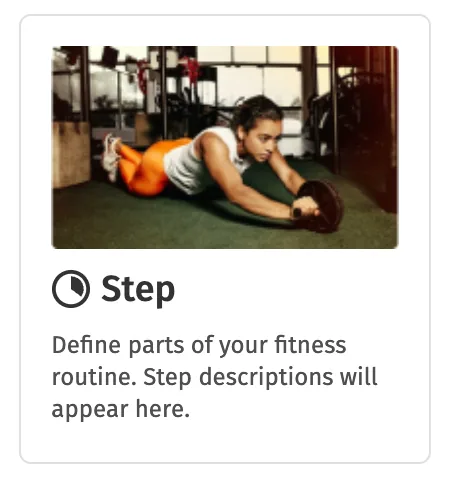
- Click Add Sequence and select Step.
- Drag the handles to select the part of the clip you want to save as the step.
- Zoom in with the slider for accuracy, or play the clip and type the exact start and end times.
- Click Add to project.
For the full walkthrough of the Fitness editor, see How to create a fitness video.
5Customise the timer once the sequence is on the timeline.
- Set the time so viewers know exactly how long the rep lasts.
- Change the colour, opacity and position to match your brand.
- Switch between counting up and counting down.
Every step you add after this one inherits the styling of the previous step, so you only need to set the colour, position and font once.
6Preview the video, then click Export. It's ready to share.