
Music and audio
Audio is the most overlooked part of video design, and one of the fastest ways to make a video feel finished. This guide covers Typito's music library, uploading your own tracks, trimming them, and controlling volume.
The Typito music library
Typito includes 50+ copyright-free tracks sorted by category. Hover a track and click the play icon to preview it, then click once to add it to your project.
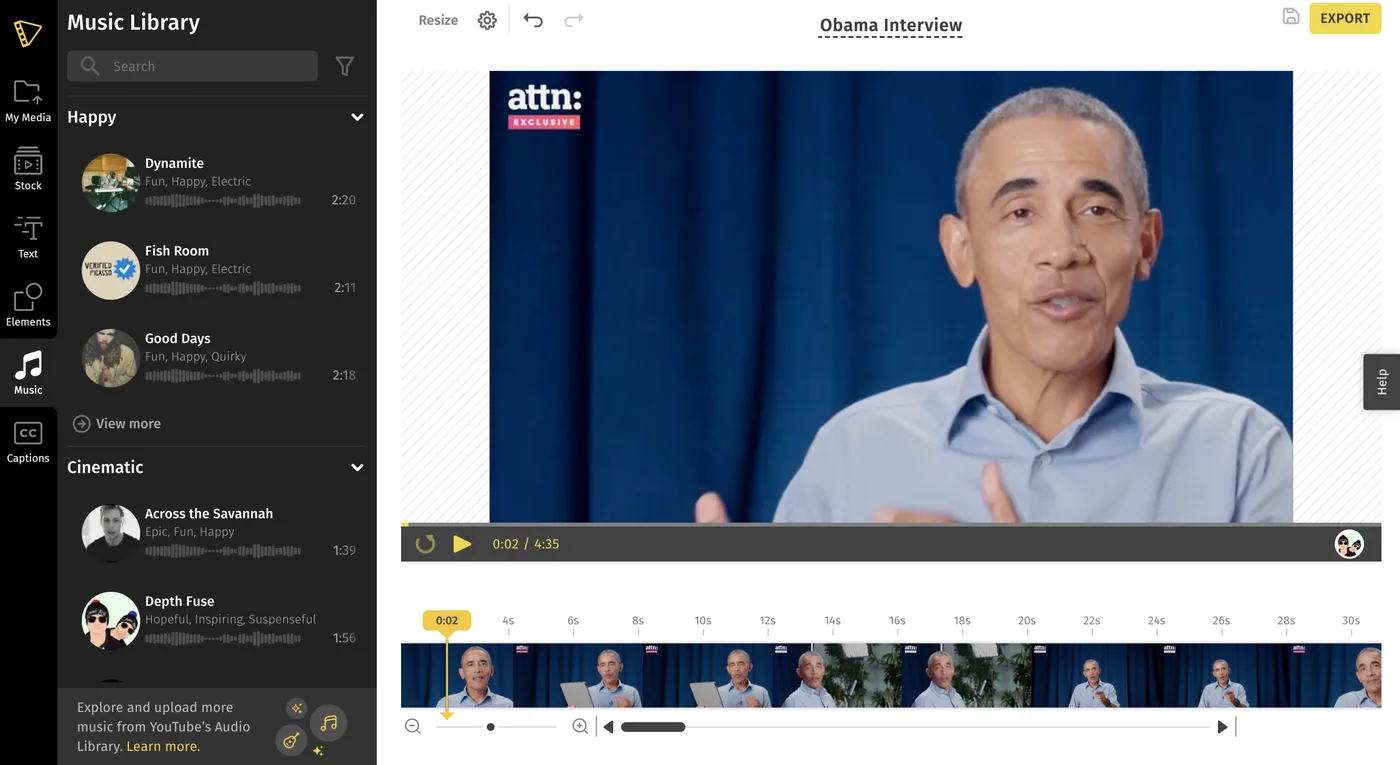
The tracks are curated from YouTube's Audio Library. By using them you agree to comply with YouTube's Audio Library terms.
Upload your own music
1Go to My Media in the left panel.
2Under the Audio section, click Upload and choose a file from your computer.
3Click the uploaded track to add it to your project, then adjust it from the properties panel.
Getting more free music from YouTube
You can pull additional free tracks from YouTube's Audio Library and upload them to Typito.
1Sign in to YouTube and open YouTube Studio .
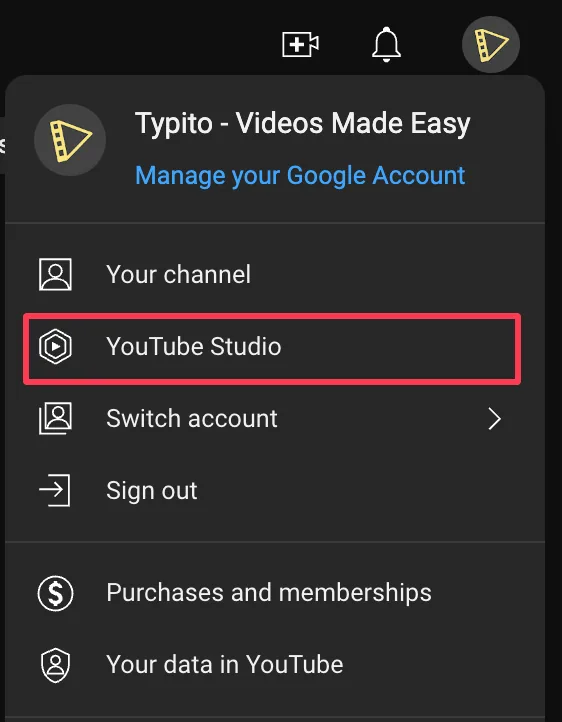
2Click Audio Library in the left panel, find a track and download it.
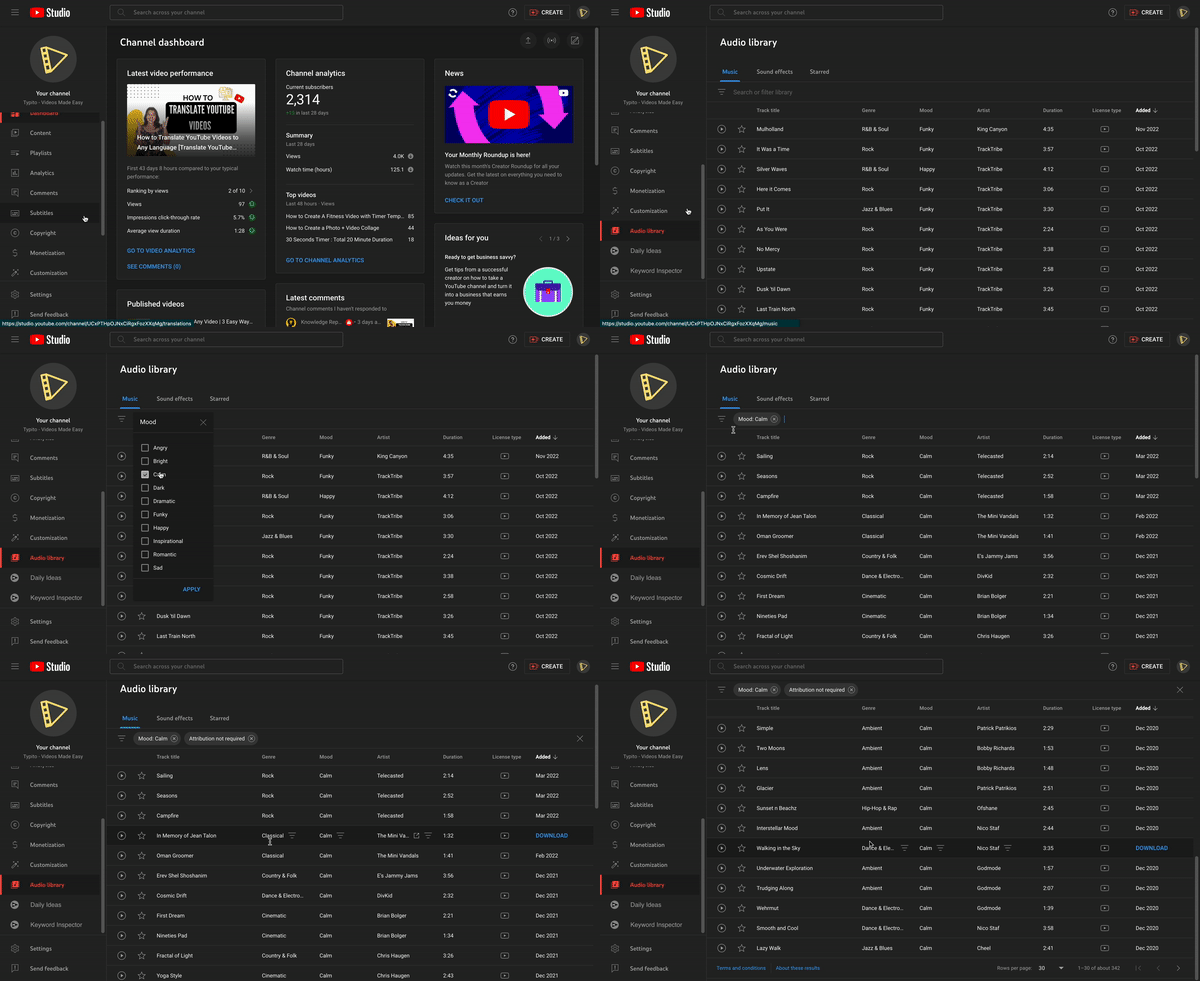
3Upload it to Typito the same way as any other audio file.

Trim a track
You can trim audio when the track is longer than your project, choosing which segment to use.
1Upload or select an audio track.
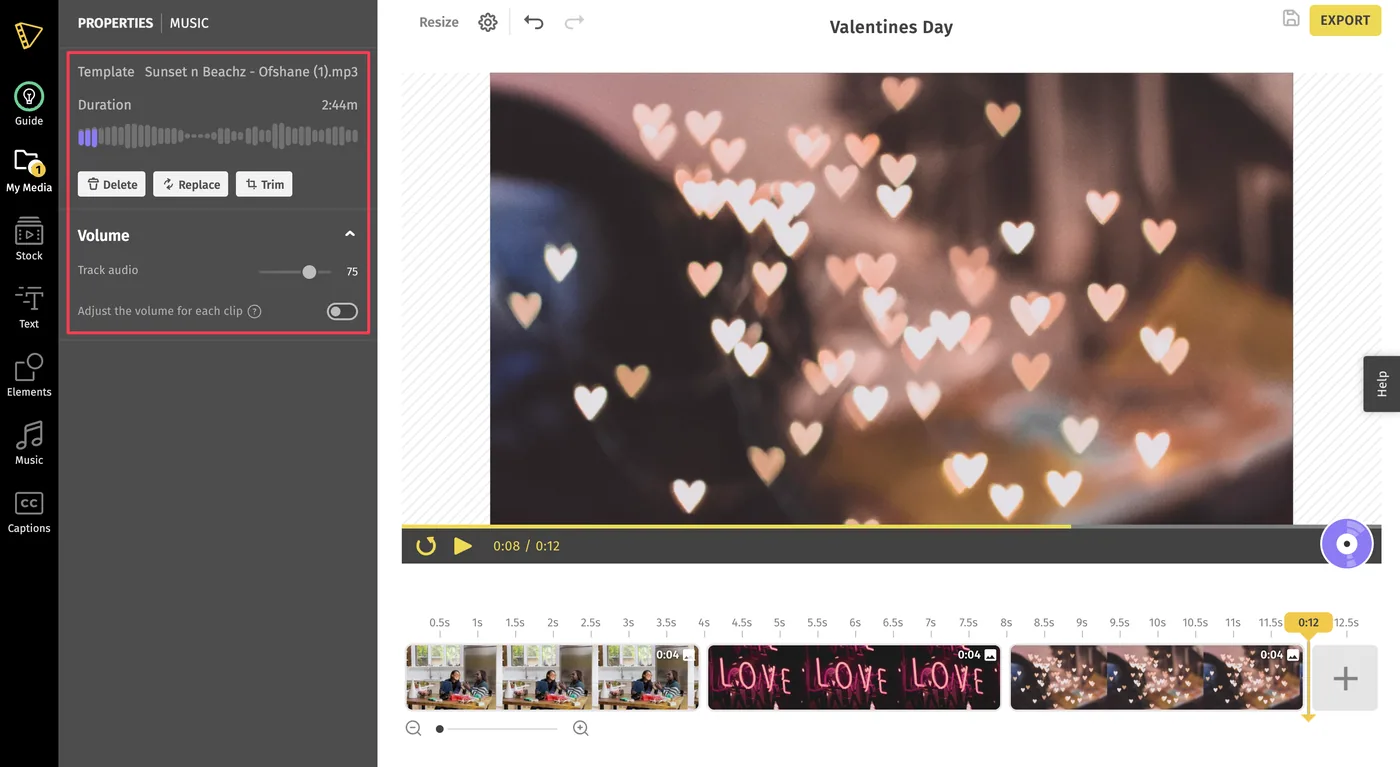
2Click Trim in the Audio section and choose the segment you want.
Replace a track
Click Replace in the Audio section. That opens the music library, where you can pick a different track or upload a new one.
Control the volume
Typito has two independent volume levels, which is what makes it possible to duck a music bed under someone speaking:
- Clip volume — the audio that came with an individual video clip on the timeline.
- Track audio — the background music laid over the whole project.
You can set the volume for the entire project at once, or clip by clip. Select a clip to adjust only that clip; adjust the background track from the Audio section to change the whole bed.
A common setup: keep the background track low so it sits under dialogue, then raise it during sections with no speech.