
Adding An Image Overlay
How to add an overlay image on any clip
With Typito, you can easily add pictures, logos, or a watermark. You can add an image as an overlay on your video in two ways.
1Upload your own Images Step 1: Click My Media or the timeline '+' button and upload an image of your choice. Step 2 : Once uploaded the image,
- You can drag and drop the image to the center of the canvas or,
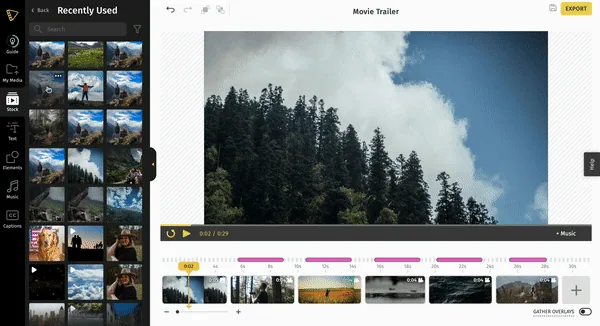
- You can also click the three dots when you hover over the image and choose 'Add as overlay.'
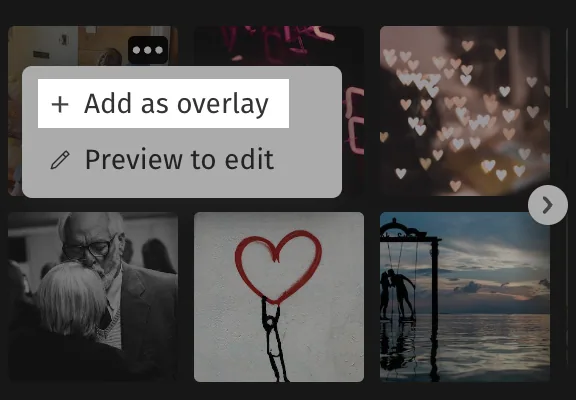
Step 3: Once your image appears on the clip as an overlay, you can resize, crop, adjust position, and opacity. Click Clip options for more.
Upload Stock Media
You can also create an overlay from our large collection of stock media.
1Head to Stock Media and search for an appropriate stock image.
2Drag and drag or click the drop-down to add the image as an overlay.
3The image will now appear on the clip as an overlay, and you can make the necessary edits.
Still stuck? Email hello@typito.com and a human will pick it up.