
Upload an SRT file (in any language)
Create beautiful subtitles by uploading an existing subtitle file/ SRT file within minutes
SRT files contain subtitle information, including the sequential number of subtitles and start and end time code of your text to ensure that the subtitles of the file match your audio and visuals.
Typito allows you to upload your SRT file (in any language), and it will automatically create the subtitles and sync them with the audio and visuals on your video.
So let's learn how to add an SRT file to your project, step by step
TABLE OF CONTENTS
- Step 1: Upload your video to Typito.
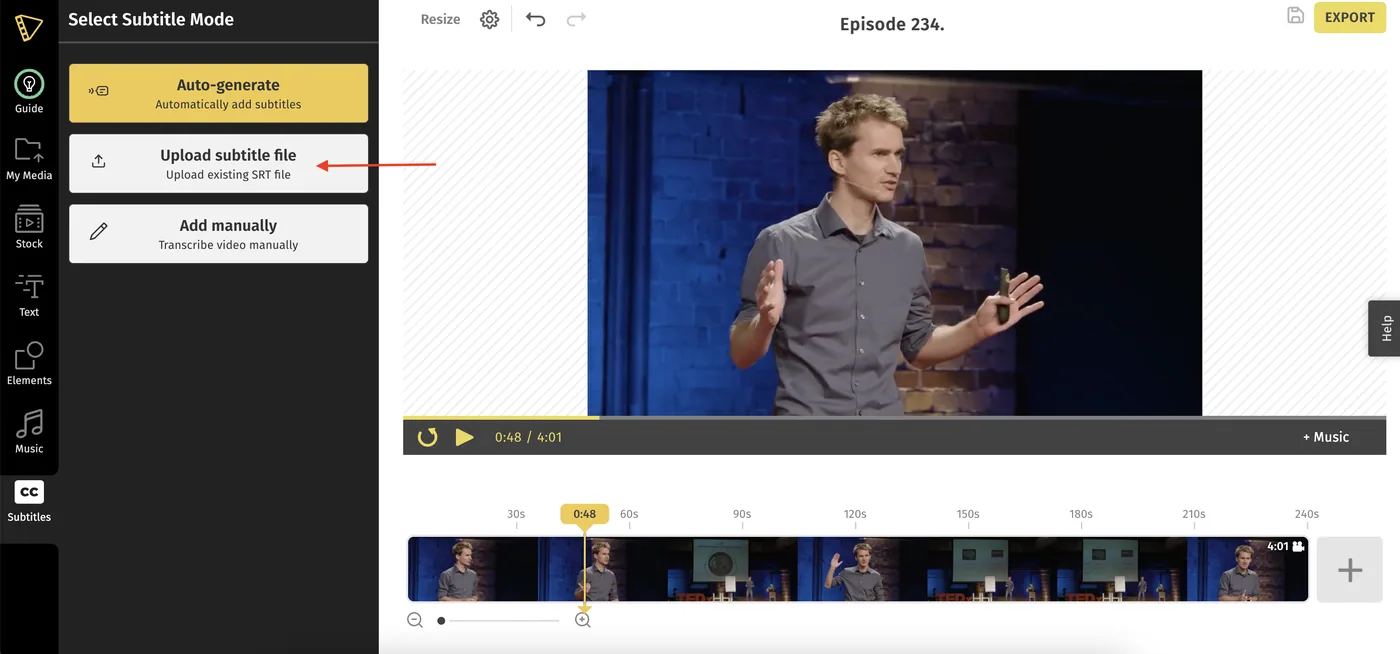
- Step 2: Choose Upload SRT to transcribe your video.
- Step 3: Choose the language you want to generate the subtitles in.
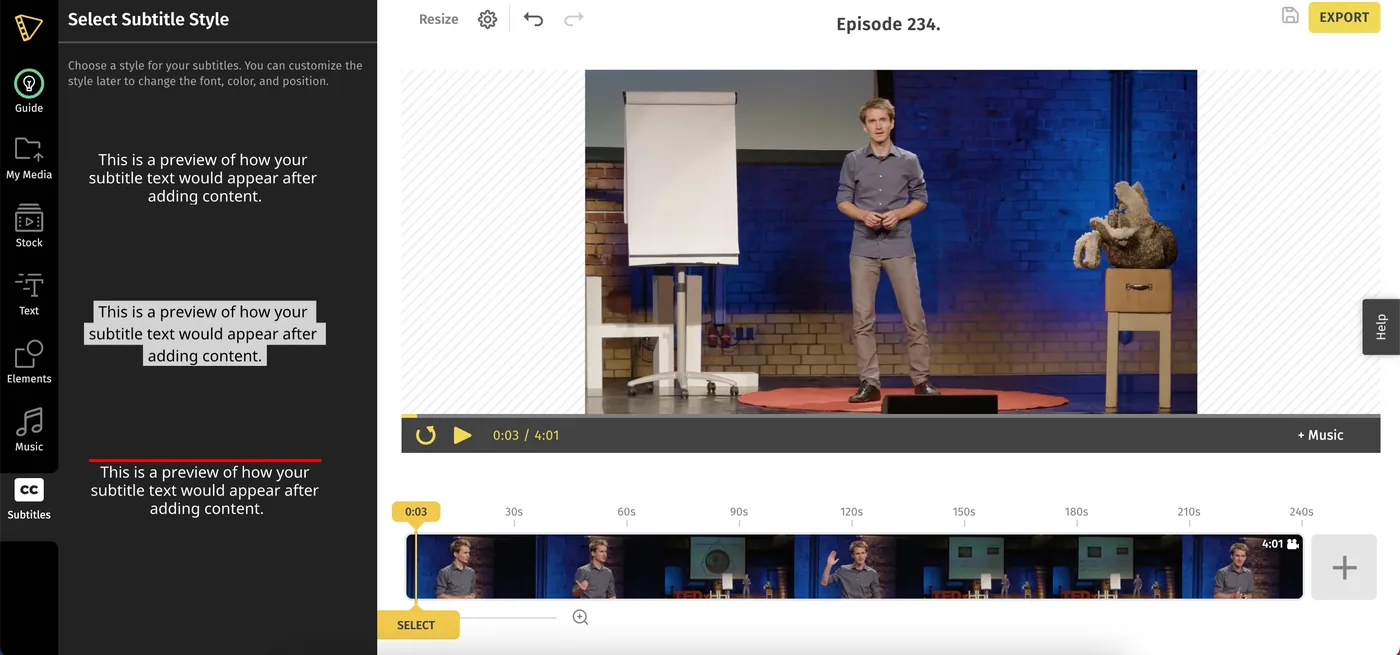
- Step 4. Choose a theme for your subtitles.
- Step 5: Click Upload SRT file.
- Step 6: Click the “Style” tab to style your subtitles.
1Upload your video to Typito.
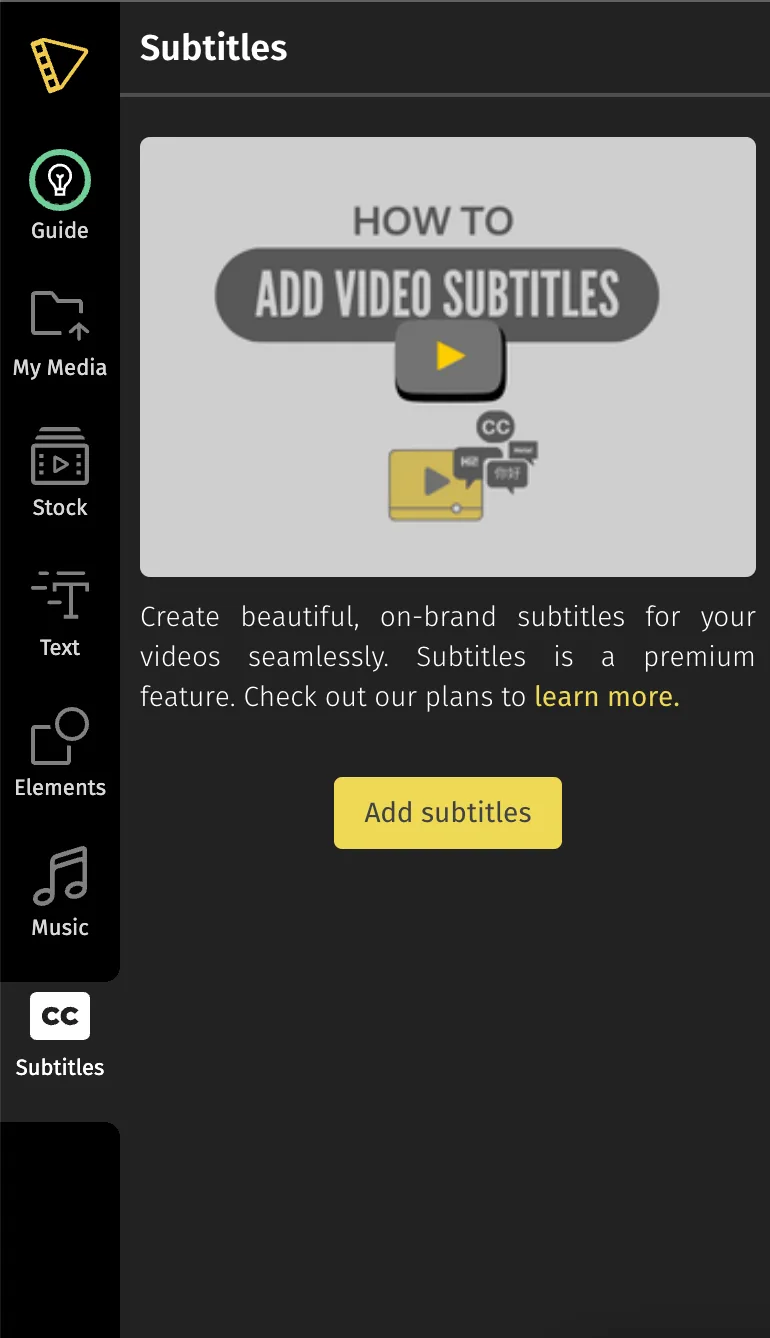
Click 'Subtitles' in the left panel. And click “Add Subtitles.” If this is your first time using the Subtitles tool on Typito, there’s a quick video tutorial to help you out.
2Choose Upload SRT to transcribe your video.
3Choose the language you want to generate the subtitles in.
If you’re only looking to add subtitles, then keep the original language and the caption language the same.
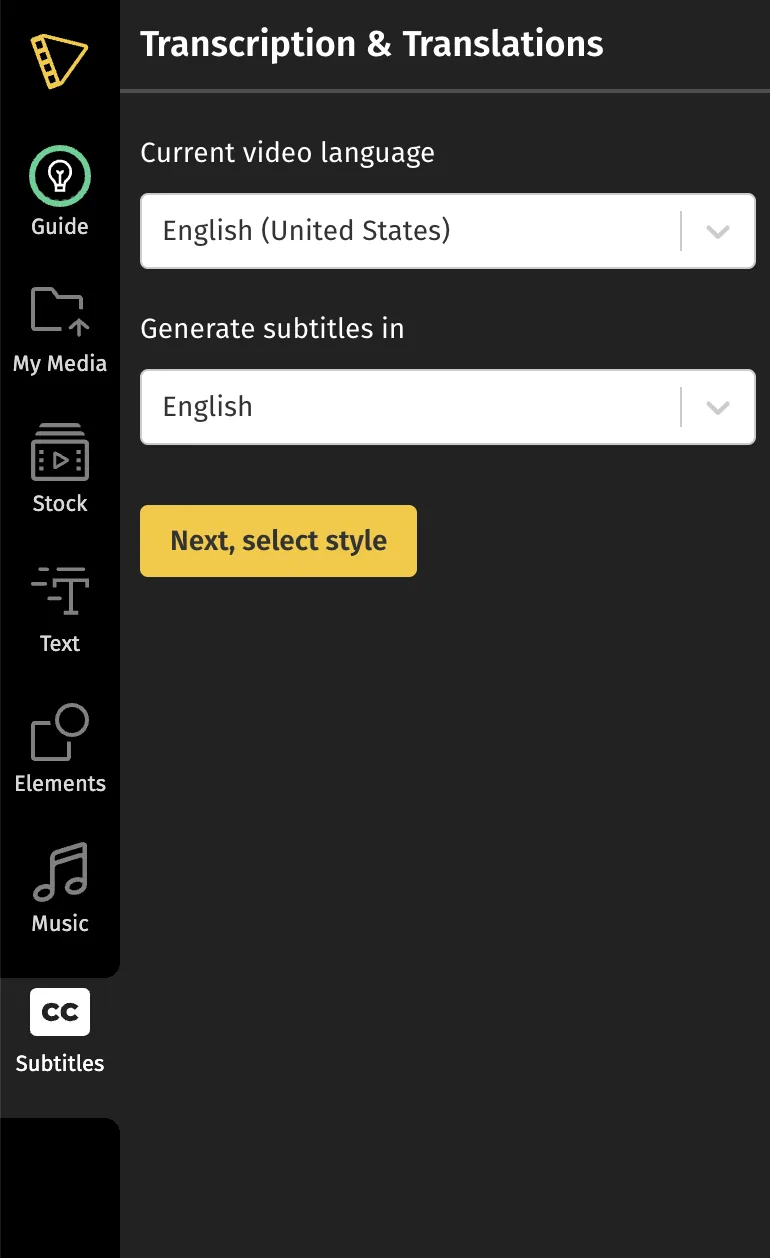
Note: You can also add subtitles in another language. If you’re looking to add translated subtitles, choose the original language and then choose the language you want to add subtitles in.
4Choose a theme for your s ubtitles .
Don’t worry about the font or colors, you can always change these in the next steps. Use the preview to ensure that the theme you select doesn't distract from the viewing experience.
5Click Upload SRT file.
Once your file is uploaded, your subtitles will appear on your video.
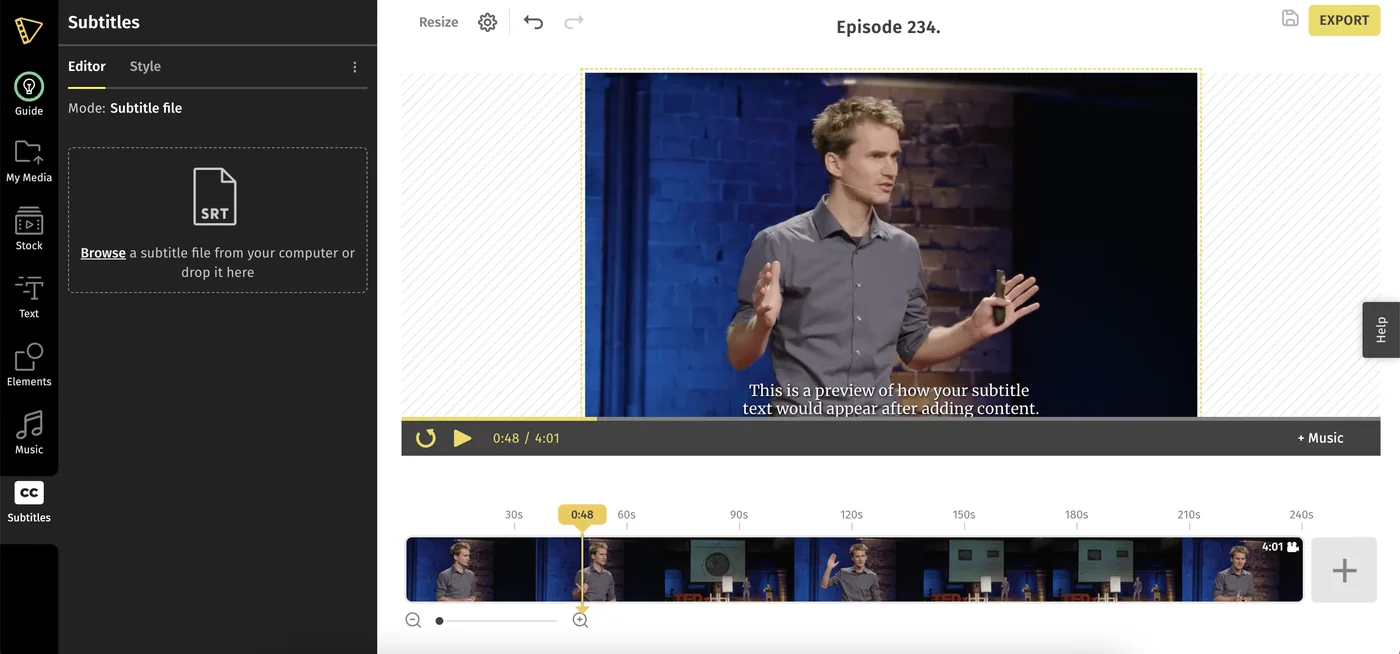
6Click the “Style” tab to style your s ubtitles .
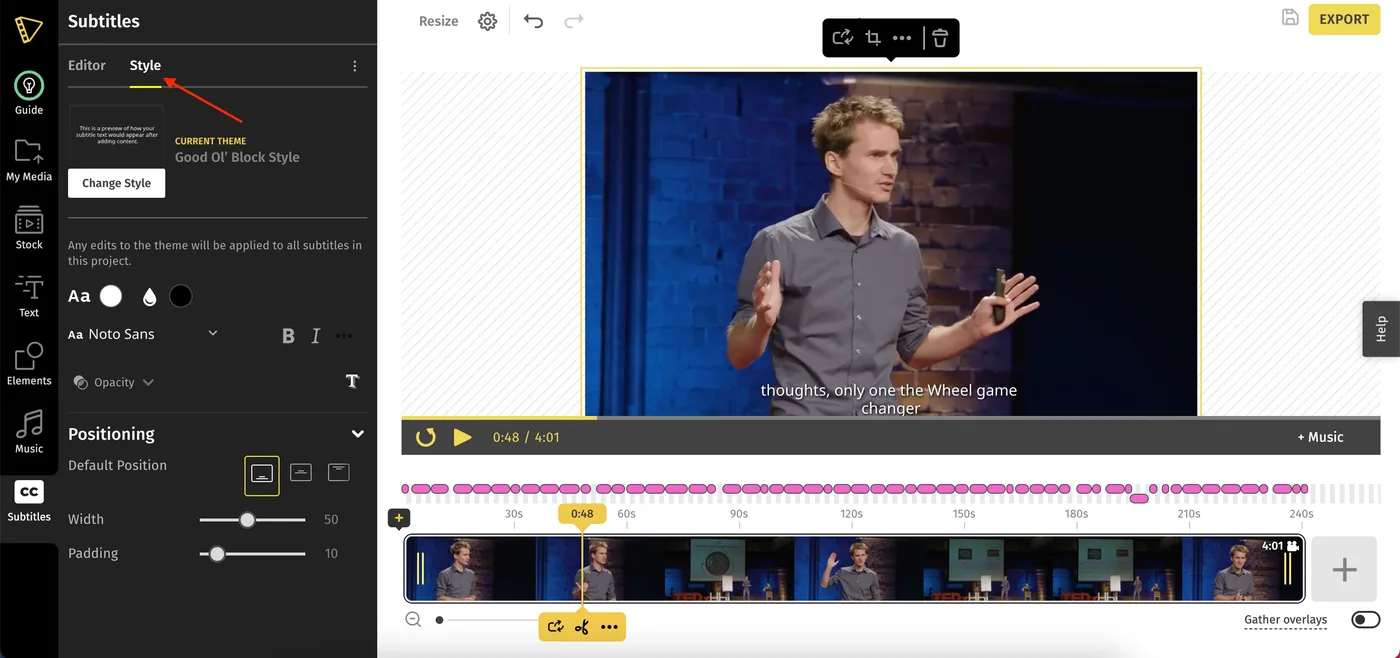
If you want to edit any of the Subtitles on Typito, you can do that by moving to the point in the video where you want to make the change. To edit, you can either click the caption box on the left-hand side panel or the one that you see on the video in the edit area.
You can also delete any caption boxes by clicking on the 'bin' icon beside every box.
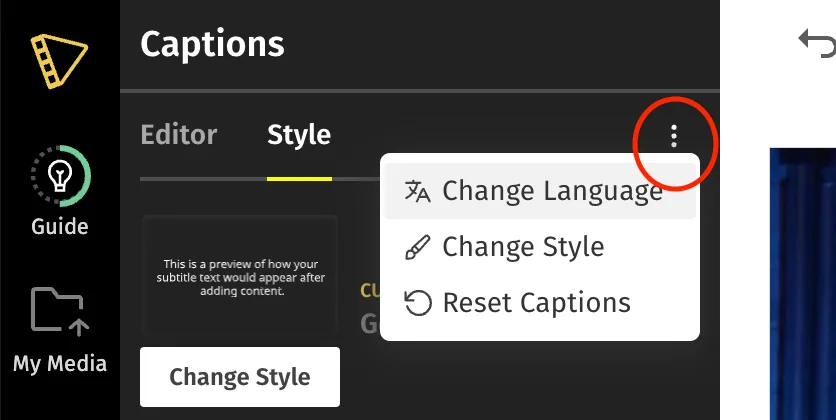
Note: You can always change the style or even reset your subtitles by clicking the ‘More Options” Icon in the left panel.
That's it! We hope you have fun adding subtitles with Typito.
Plan availability for this feature has changed since this article was written — see typito.com/pricing for what's included today. See current plans