If you’re looking up how to make a quiz in Google Forms, chances are you want something quick, simple, and familiar.
And that’s exactly why Google Forms is still widely used in 2026.
But here’s the reality most guides skip: Google Forms works well for basic quizzes, and starts to feel limiting the moment engagement, design, or video becomes important.
This guide shows you:
- Why Google Forms Is a Practical Starting Point for Quizzes
- How Do You Make a Quiz in Google Forms? (Step-by-Step)
- Customizing Your Google Forms Quiz (And Where It Starts to Feel Limited)
- How to Create an Interactive Trivia Quiz with Typito
- FAQs About Google Forms Quizzes
Why Google Forms Is a Practical Starting Point for Quizzes
A Google Forms quiz is simply a regular form with scoring turned on. Once you enable quiz mode, you can assign correct answers, add points, and let Google handle grading automatically.
That makes it ideal for:
- Classroom quizzes
- Internal training check-ins
- Workshop follow-ups
- Simple certification tests
If your goal is efficiency and clean data collection, Google Forms does its job without friction.
But if your goal is attention, participation, or shareability, that’s a different conversation (and we’ll cover that too in the later sections of this article.
To make a quiz in Google Forms, create a new form, open Settings, enable “Make this a quiz,” add questions, assign correct answers using the answer key, and set point values. Once enabled, Google automatically grades supported question types.
How Do You Make a Quiz in Google Forms? (Step-by-Step)
Step 1: Create a New Form
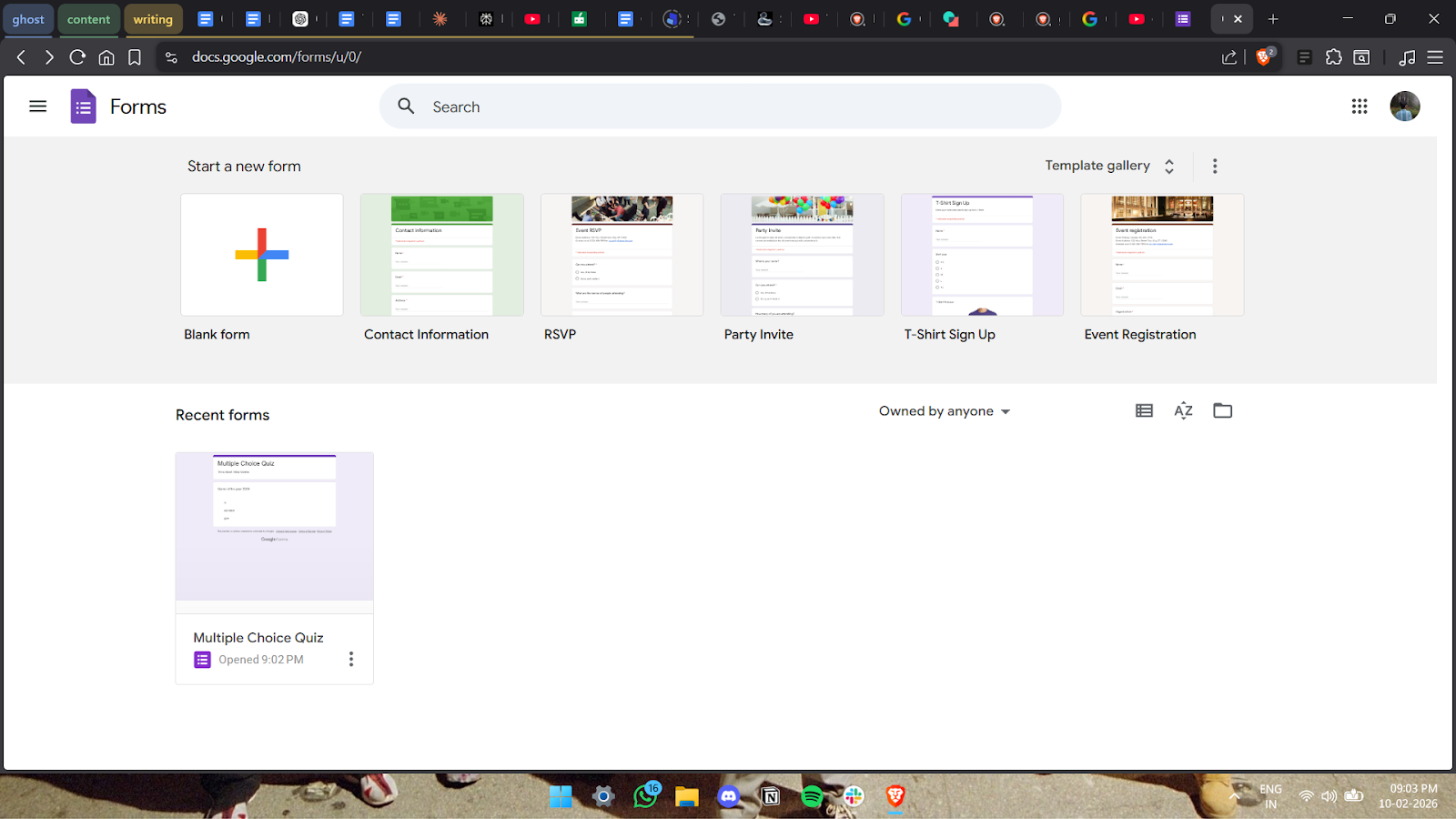
- Open Google Forms
- Click Blank Form
- Add a quiz title and short description
At this point, you’re still creating a regular form.
💡 Tip: Be clear in the title if this is graded or just for fun. Ambiguity reduces completion rates.
Step 2: Turn On “Make This a Quiz”
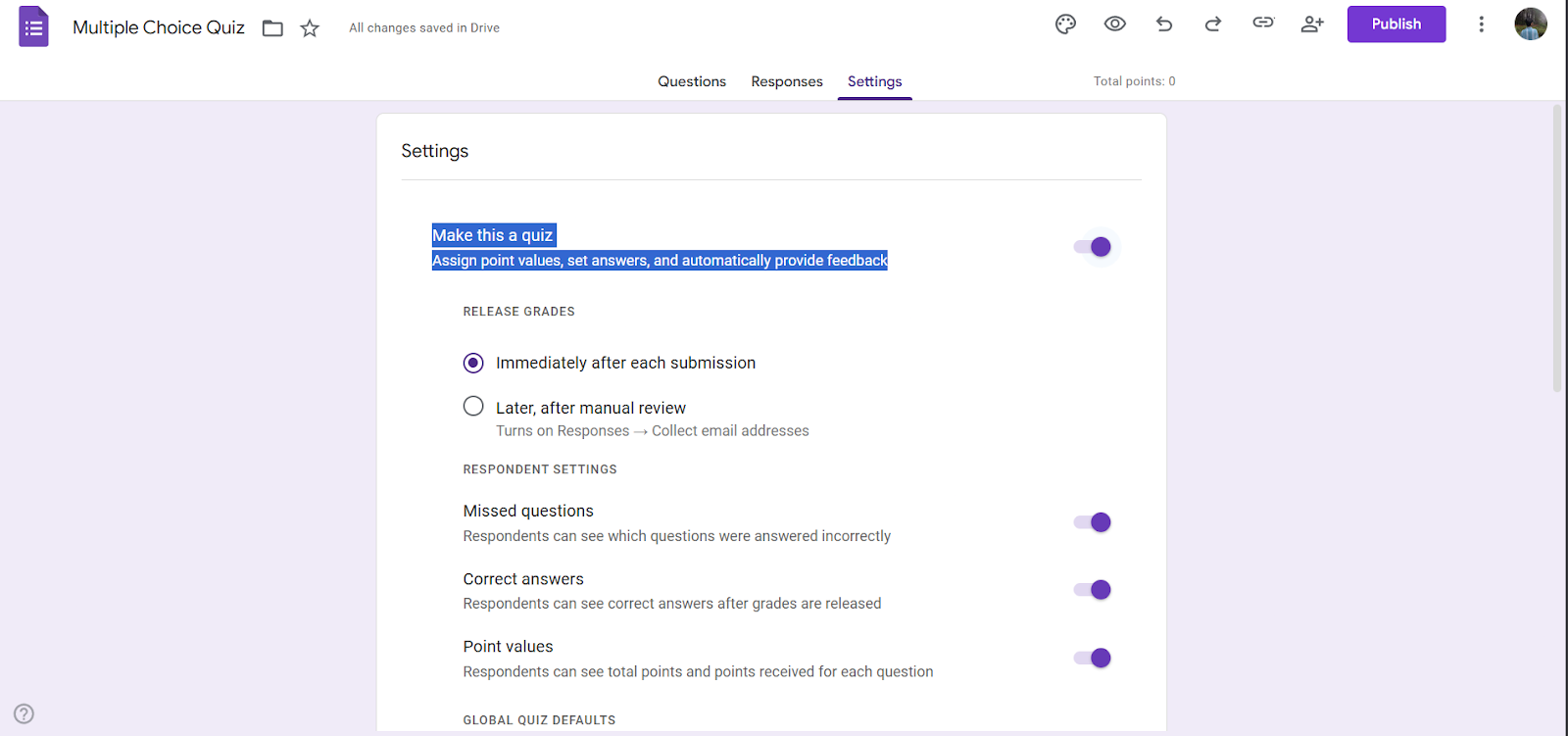
This is where your form becomes a quiz.
- Click the Google Forms quiz settings (gear icon)
- Open the Quizzes tab
- Toggle “Make this a quiz” ON
- Choose when users see their results
Without this step, scoring won’t work.
Step 3: Add Quiz Questions
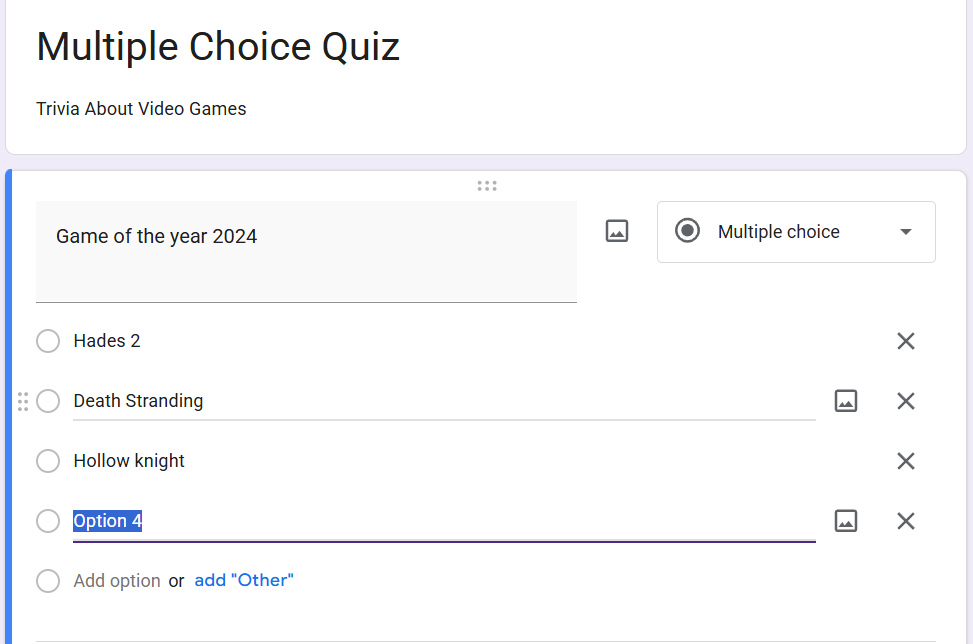
Click the “Add Option” button to add questions.
Short answers can work, but they often require manual review, which adds friction as quizzes scale.
Step 4: Set Correct Answers and Points
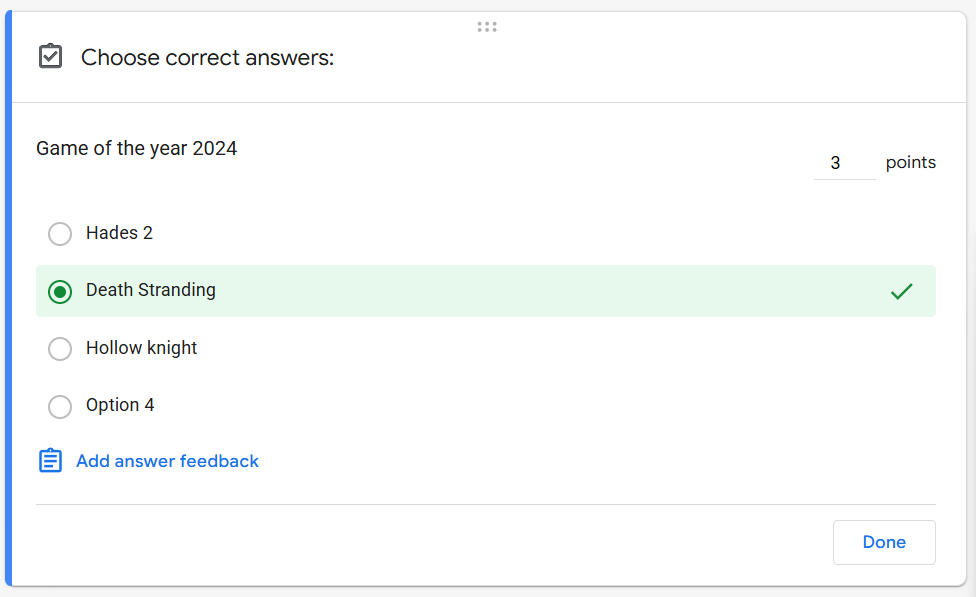
For each question:
- Click Answer key
- Select the correct answer
- Assign point values
This enables automatic grading — one of Google Forms’ biggest strengths.
Step 5: Add Feedback (Optional)
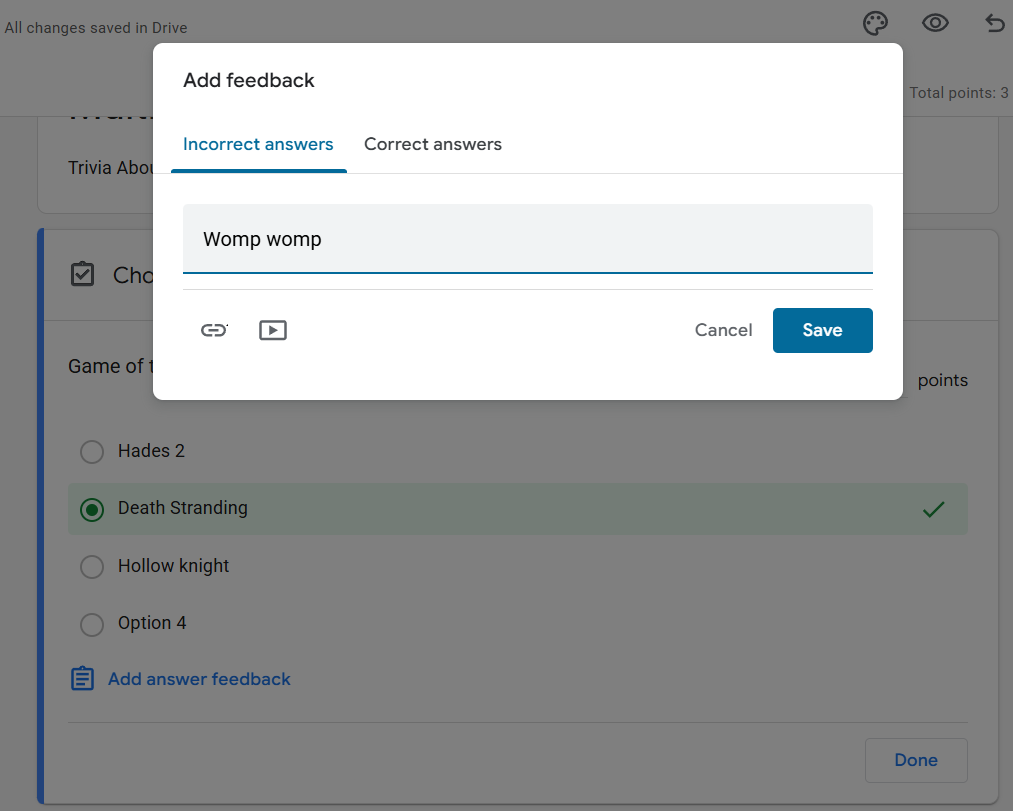
You can add:
- Feedback for correct answers
- Explanations for incorrect answers
This helps with learning, but customization is limited.
Customizing Your Google Forms Quiz (And Where It Starts to Feel Limited)
Once your quiz is set up, Google Forms gives you a few ways to fine-tune how it behaves. You can make sure important questions must be answered, reduce guesswork by changing how answers appear, and control how responses are collected.
For straightforward quizzes, this level of customization is usually enough.
But as soon as you care about how the quiz feels to the person taking it, limitations show up.
- You can’t control layout beyond basic themes
- Video embeds are passive (no interaction built into them)
- You can’t create animated transitions
- Branding options are minimal
- The experience always feels like a form, not content
For internal knowledge checks, this is fine. For social media, workshops, or engagement campaigns, it often feels flat.
That’s the tradeoff Google Forms makes. It keeps the setup simple, but it doesn’t offer much flexibility beyond that.
Where Google Forms Quizzes Start to Fall Short
Google Forms friction usually appears when creators want more than just answers.
In 2026, most audiences consume content through:
- Instagram Reels
- TikTok
- YouTube Shorts
- Interactive email campaigns
A static form link often feels disconnected from those platforms. There’s no built-in motion, pacing, timer, or engagement hook.
And when quizzes are part of a content strategy, not just assessment - experience matters as much as accuracy.
This is why educators, marketers, and creators often outgrow Google Forms once quizzes become part of content or engagement strategy.
How to Create an Interactive Trivia Quiz with Typito
Google Forms works when you need answers.
But what if you want your quiz to feel like content — something people watch, share, and actually enjoy finishing?
That’s where video-based trivia changes the experience.
Here’s how to create one using Trivia by Typito.
Step 1: Choose How You Want to Start
When you open Trivia by Typito, you can either:
- Generate a quiz from scratch using AI
- Choose a ready-made trivia template
If you start from scratch, you simply describe what you want.
For example:
“Create a 10-question general knowledge trivia quiz with a mix of easy and medium difficulty. Use a colorful classroom theme.”
Instead of building question by question, you start with a fully structured trivia video.
Step 2: Edit and Customize Your Quiz
From the editing panel, you can:
- Adjust questions
- Change themes and colors
- Modify timing
- Edit voiceover
- Add branding
This is where the difference from Google Forms becomes obvious.
You’re not formatting fields, you’re shaping an experience.
Step 3: Preview and Download
Before publishing, preview your trivia game to check pacing and transitions.
Once ready, you can:
- Download it as a video
- Share it directly
See an Example of a Trivia Quiz Created with Typito
Here’s a walkthrough showing how a trivia quiz is built and how it looks when finished:
FAQs About Google Forms Quizzes
Is Google Forms free for quizzes?
Yes. Google Forms quizzes are completely free with a Google account. There are no limits on the number of quizzes or responses for most users. This makes it a popular option for teachers, students, and teams who need a simple quiz tool without additional costs.
Can you create a personality quiz in Google Forms?
You can create a basic personality quiz, but it requires manual scoring and logic. Google Forms doesn’t support weighted outcomes or personality results natively. As quizzes become more complex, managing results can quickly become time-consuming and harder to scale.
Is Google Forms good for interactive or video quizzes?
Google Forms works well for text-based quizzes, but it isn’t designed for interactive or video-first experiences. There’s no native support for video questions or dynamic interactions, which makes it less effective for engagement-focused quizzes or content designed to be shared.
Can Google Forms automatically grade quizzes?
Yes. Google Forms can automatically grade multiple-choice, checkbox, and dropdown questions once you set correct answers and points. Short-answer questions usually need manual review unless answers are an exact match. Results can be shown immediately or after manual review, depending on your settings.