You can make a trivia in PowerPoint. People do it every day for team meetings, classroom reviews, and live brand events.
But if your goal is posting trivia on Reels, Shorts, or TikTok, PowerPoint can turn into a time tax fast. The slide logic, the export settings, and the vertical format juggling. It adds up.
This guide walks you through the PowerPoint method step-by-step, and shows exactly when switching to a video-first trivia tool is the smarter, faster move.
At A Glance
- How to Build a Trivia Game in PowerPoint
- When PowerPoint Works for Trivia
- When PowerPoint Trivia Becomes Slow
- When a Video Trivia Tool Makes More Sense
- Choosing the right tool for how you publish
How to Build a Trivia Game in PowerPoint
Step 1: Set Up Your Slide Structure
Start with a blank PowerPoint presentation. You'll need at least four slide types:
- Title slide: Introduces the trivia theme
- Question slide: Displays the question and answer options (A, B, C, D)
- Correct answer slide: Confirms the right answer with positive feedback
- Wrong answer slide: Offers a retry option or moves to the next question
Think of these as your reusable templates. Once you settle on a layout for one question slide, duplicate it for every question in your game.
Before you start building: Have your questions ready. If you need trivia questions fast, tools like Typito AI's Quiz Generator let you generate topic-based questions and export them as a CSV. You can use that spreadsheet to copy-paste questions directly into your PowerPoint slides without starting from scratch.
Step 2: Design Your Question Slide
This is your master template.
- Create four shapes (rectangles or rounded rectangles work well) to represent answer choices.
- Label them clearly: A, B, C, D. Position them evenly using PowerPoint's alignment tools.
Add a text box at the top for your question. Keep it large enough to read from a distance, especially if you're presenting in a conference room or classroom.
Each answer shape will become clickable in the next step, so make them visually distinct and easy to tap or click.
Step 3: Add Hyperlinks for Navigation
This is where interactivity happens.
- Select the shape for the correct answer, then go to Insert > Action > Hyperlink to and choose "Next Slide" (which should be your Correct Answer slide).
- For the three wrong answers, link them to your Wrong Answer slide. If you want a retry option, set the Wrong Answer slide's "Try Again" button to link back to the Last Slide Viewed.
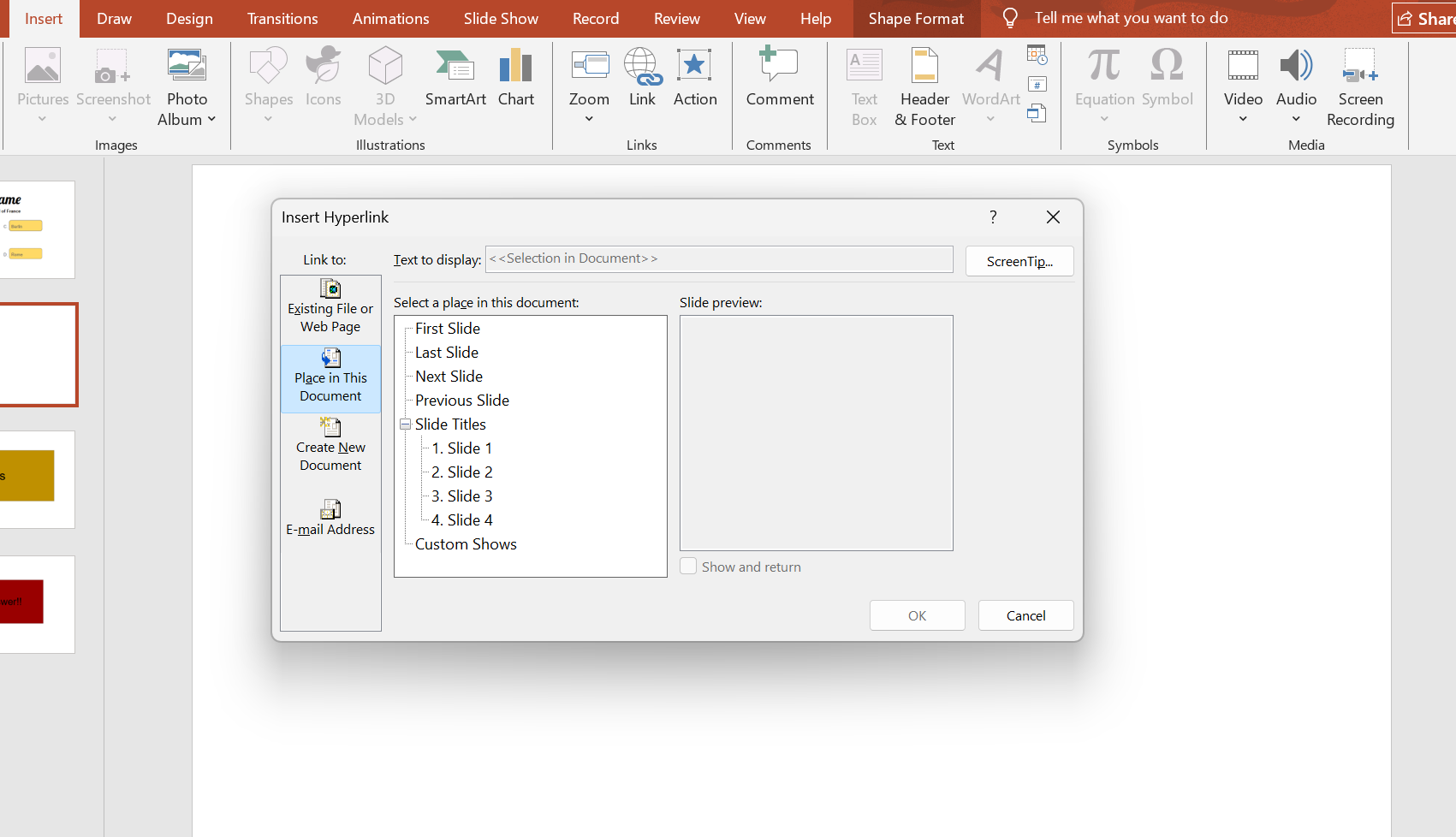
Key insight: PowerPoint's Action Settings let you add sound effects on click. A satisfying "ding" for correct answers and a subtle "buzz" for wrong ones makes the experience feel more game-like.
Step 4: Disable Free Navigation
By default, PowerPoint lets viewers advance slides with arrow keys or mouse clicks. That breaks your trivia logic; you need them to click the answer buttons, not skip ahead.
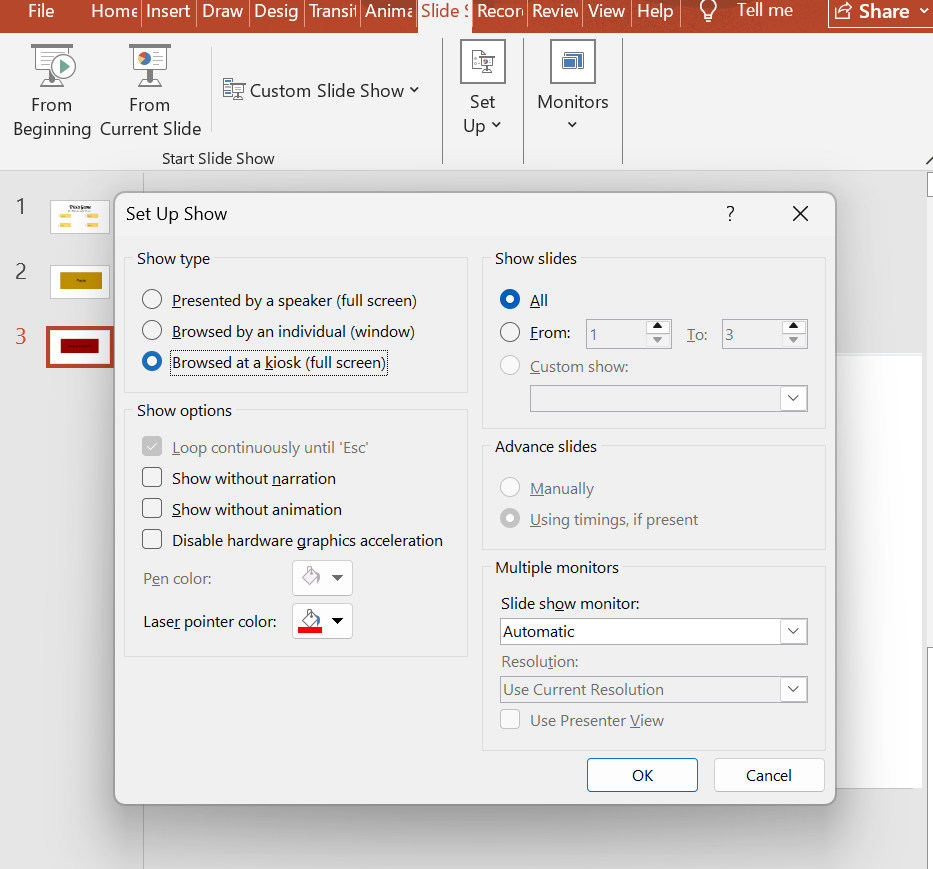
- Go to Slide Show > Set Up Slide Show and select Browsed at a Kiosk (full screen). This locks navigation to your hyperlinks only.
Step 5: Duplicate and Customize Questions
Once your first question is wired up, select both the Question Slide and the Correct Answer Slide, copy them, and paste. Swap in a new question and shuffle the answer positions to keep things interesting.
Repeat this for as many questions as you want. Five to ten questions typically work well for a single trivia session without overwhelming your audience.
Step 6: Add Timers and Animations (Optional)
Want to add time pressure?
- Create a rectangle shape at the top of your question slide and apply an Exit: Wipe animation from right to left. Set the duration to 10 seconds.
- Then, under Transitions, check Advance Slide After 00:10. The slide will auto-advance once the timer expires, forcing quick decision-making.
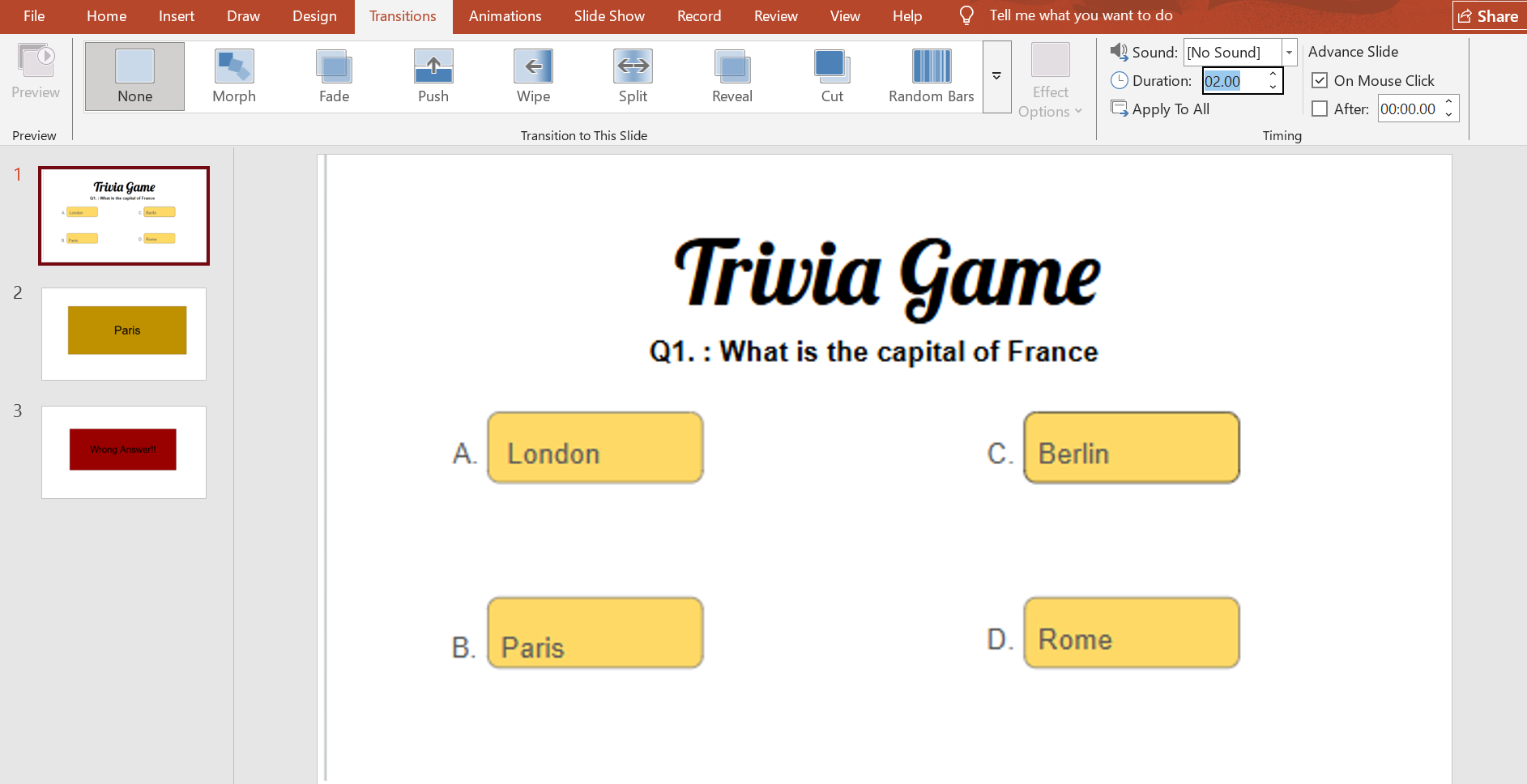
Just be aware: this removes the player's ability to click their answer before time runs out, which can frustrate slower readers.
Step 7: Add Scoring (Advanced)
If you want automated scoring, you'll need to use VBA (Visual Basic for Applications) or integrate a third-party add-in like ClassPoint. VBA lets you track correct and wrong answers through variables, then display a final score slide at the end.
This gets technical quickly. You'll write macros that increment a "correct answer" counter when specific buttons are clicked, then display that counter on a results slide.
If you're comfortable with light coding, it's doable. If not, there are free PowerPoint trivia templates online that include pre-built scoring logic.
When PowerPoint Works for Trivia (And When It Doesn't)
PowerPoint works well when you're presenting live trivia to a room full of people. Think team meetings, training sessions, or classroom reviews where you control the pace and click through questions as a group responds.
But if your goal is shareable content for social media - Reels, Shorts, TikTok, the workflow changes. PowerPoint wasn't designed for vertical video export, automated audio syncing, or the rapid iteration social content demands. That's not a flaw; it's just a different use case.
When PowerPoint Trivia Becomes Slow
PowerPoint works for a one-off trivia deck. It gets slow when you're producing trivia regularly.
- Updating questions means hunting slides, fixing text, re-checking links, and exporting again every time.
- Sharing can sometimes create version issues if .ppt files are opened on different devices or PowerPoint versions, fonts, animations, and click paths can shift.
- Social formatting is extra work. Reels, Shorts, and TikTok are 9:16 vertical. PowerPoint is built around deck sizes, so you'll have to resize and realign layouts often.
- Changing pacing, styling, or audio usually means repeating work across slides and re-testing the full flow.
For a one-time presentation in a meeting room, none of this matters. For a content calendar where you're posting trivia three times a week, it adds up fast.
When a Video Trivia Tool Makes More Sense
When a Video Trivia Tool Makes More Sense
If your trivia ends up as a social post, not a live slideshow, you need a clean MP4 that's already paced for a social feed.
That's where a video-first tool like Trivia by Typito AI can save time. You start with a topic, generate questions, and export a vertical 9:16 trivia video with timers, reveals, and captions, ready to upload.
No hyperlink wiring. No resizing a deck for Reels. Just a faster path from idea to post.
Want a deeper look at how it works? Here's a full walkthrough.
Choosing the right tool for how you publish
Use PowerPoint when you're presenting trivia to a room you're in.
Use a video trivia generator when the goal is an MP4 that goes on someone's feed.
Simple Next Step
If you’re running a live team quiz next week, stick with the PowerPoint flow you just built; it gives you full control in the room.
If your real goal is to post more scroll-stopping trivia to Reels, Shorts, or TikTok, your next step is simple: take one topic you already use in PowerPoint and recreate it once with a video trivia tool like Trivia by Typito AI.
Try both, compare how long each took, and let that decide your default workflow going forward.
Create a trivia video on Trivia by Typito
FAQs
Q1. Can you make a trivia game in PowerPoint?
Answer: Yes. You can build a trivia game in PowerPoint by creating question, correct, and wrong-answer slides, then linking answer buttons using Hyperlink/Action settings so clicks jump between slides like a game flow.
Q2. How do I make my PowerPoint trivia interactive?
Answer: Use clickable shapes for answers, add Insert → Action → Hyperlink to for navigation, and optionally enable kiosk mode so users can only move via buttons. You can add sounds, timers, and simple score logic with VBA.
Q3. Is PowerPoint or a video tool better for social media trivia?
Answer: PowerPoint is great for live sessions where you present and control the slides. For Reels, Shorts, or TikTok, a video trivia generator like Trivia by Typito AI outputs ready-to-post vertical videos faster than manual slide exports.
Q4. Is there a faster alternative to building trivia in PowerPoint?
Answer: Yes. Instead of wiring slides and exports manually, you can use Trivia by Typito AI, an AI-powered trivia video generator that turns simple prompts into ready-to-post vertical quiz videos for Reels, Shorts, and TikTok in minutes.